Getting Your QSL
This page is for anyone who worked a station that uses Firefly QSL and wants their QSL card. You don't need an account.
1. Search for Your Callsign
Open the station's QSL page, enter your callsign, and click Search for QSOs.
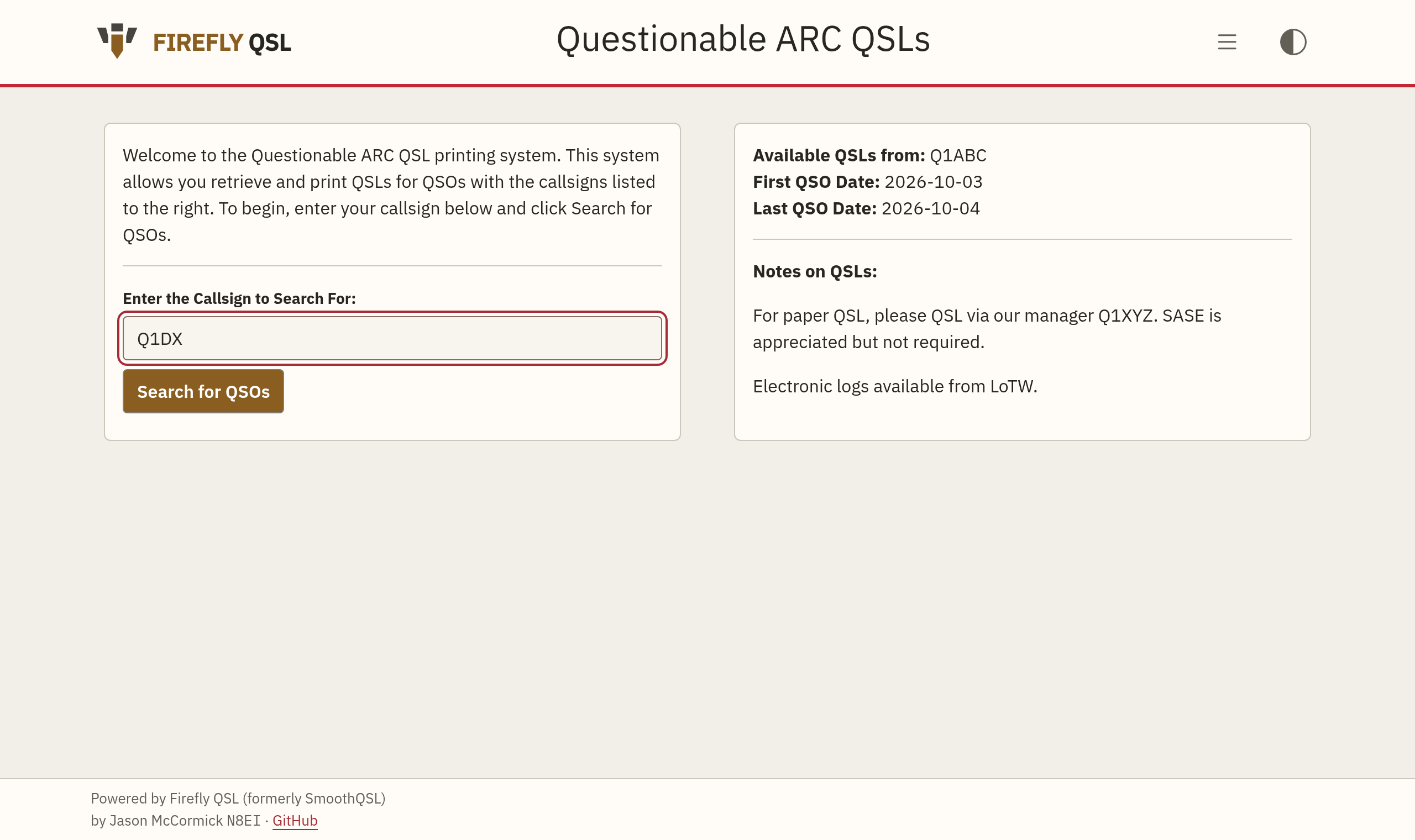
The right side of the page lists the station callsigns with QSOs loaded and the dates they cover. If your QSO was made after the last QSO date, the station hasn't loaded that log yet.
2. Choose Your QSOs
Every QSO loaded for your callsign is listed. Tick each QSO you want on the card, then click Retrieve.
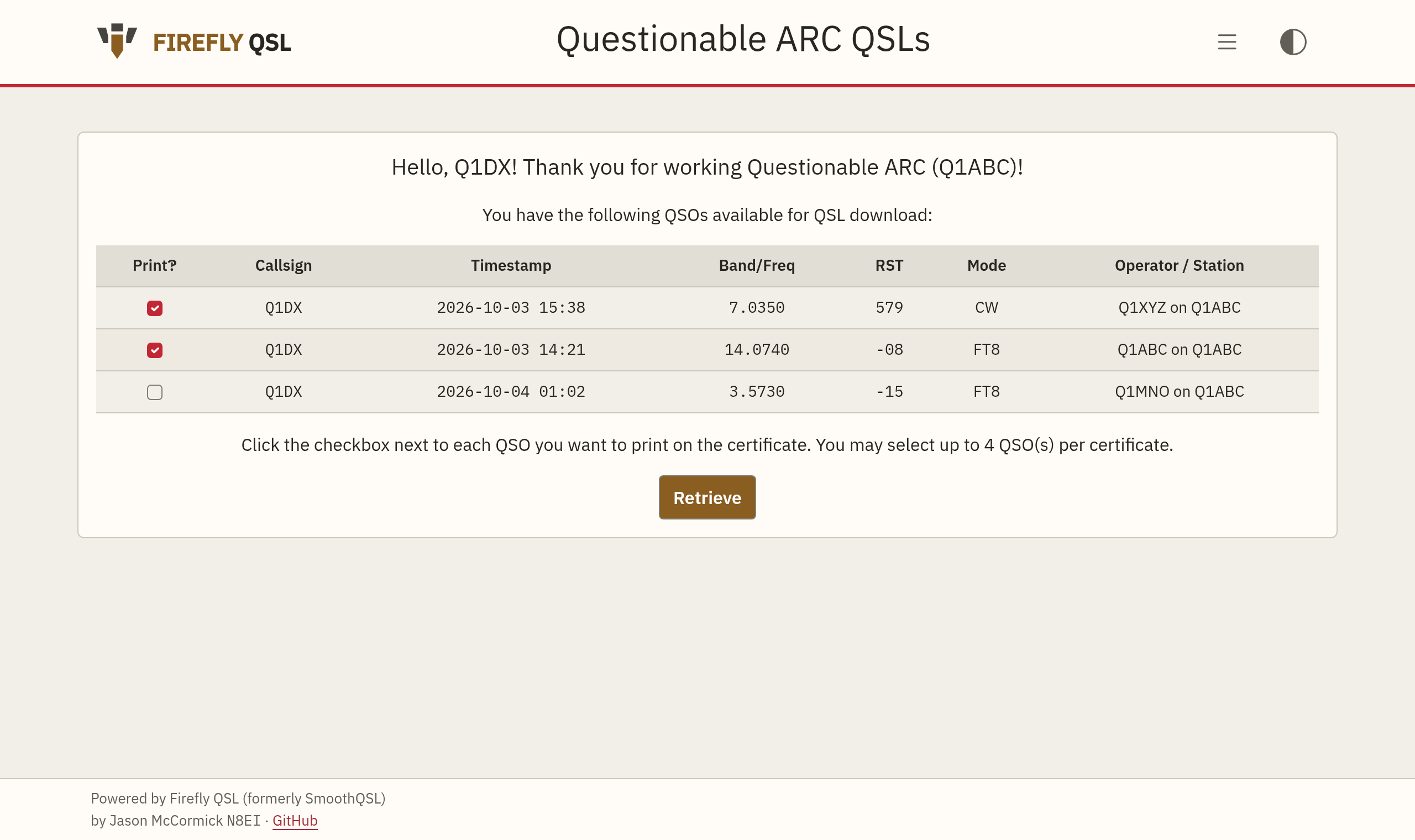
- Tick one QSO for a standard QSL card.
- If the station offers multi-QSO cards, you can tick several. The page tells you the most that fit on one card. For more QSOs than that, print more than one card.
3. Download or Print
The card is drawn and shown on the page.
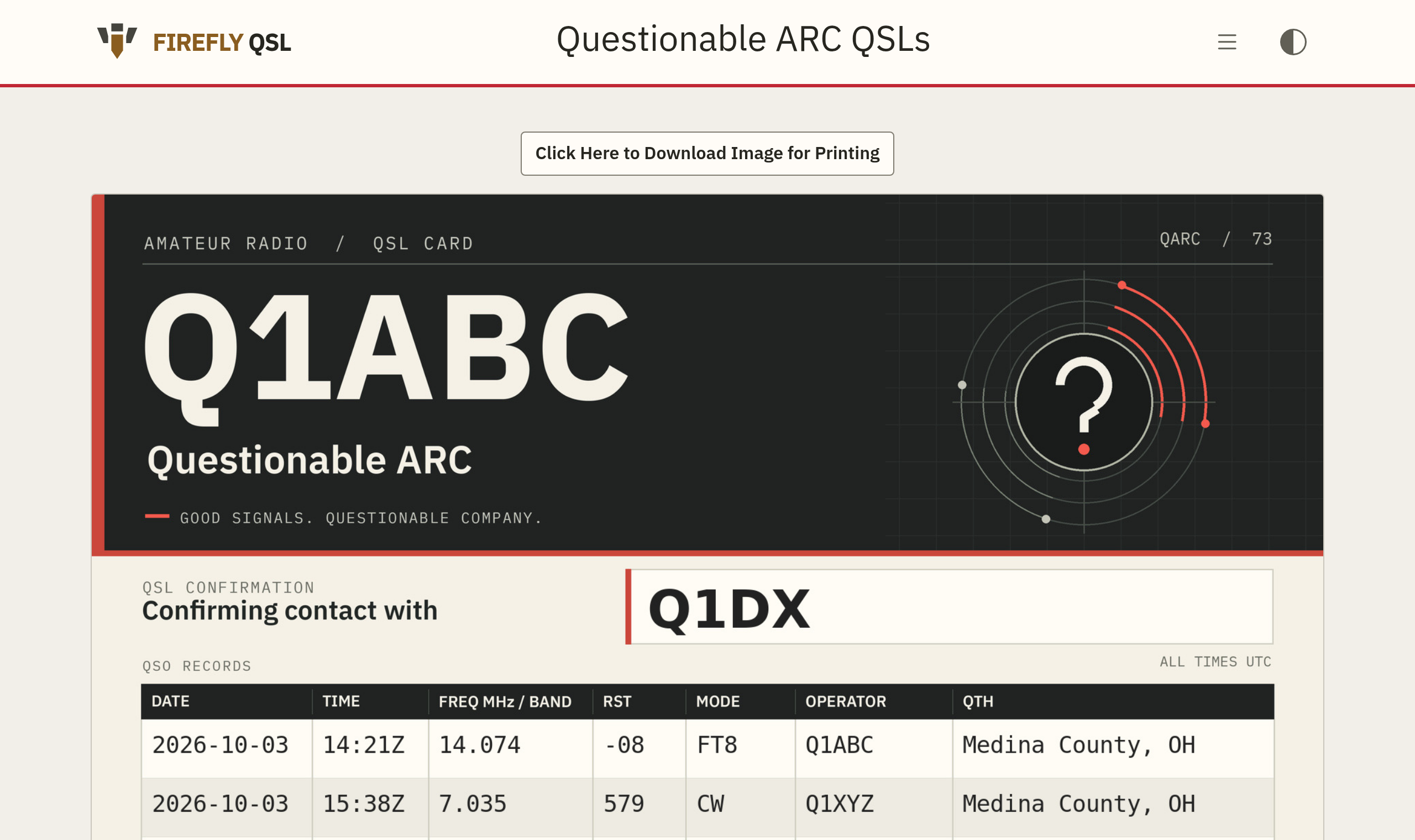
Click Click Here to Download Image for Printing to save it as a JPEG,
or right-click the image to print or copy it. The file is named after the
station and your callsign, for example Q1ABC_Q1DX.jpg.
The card is not saved on the server. To get it again later, search again.
No QSOs Found
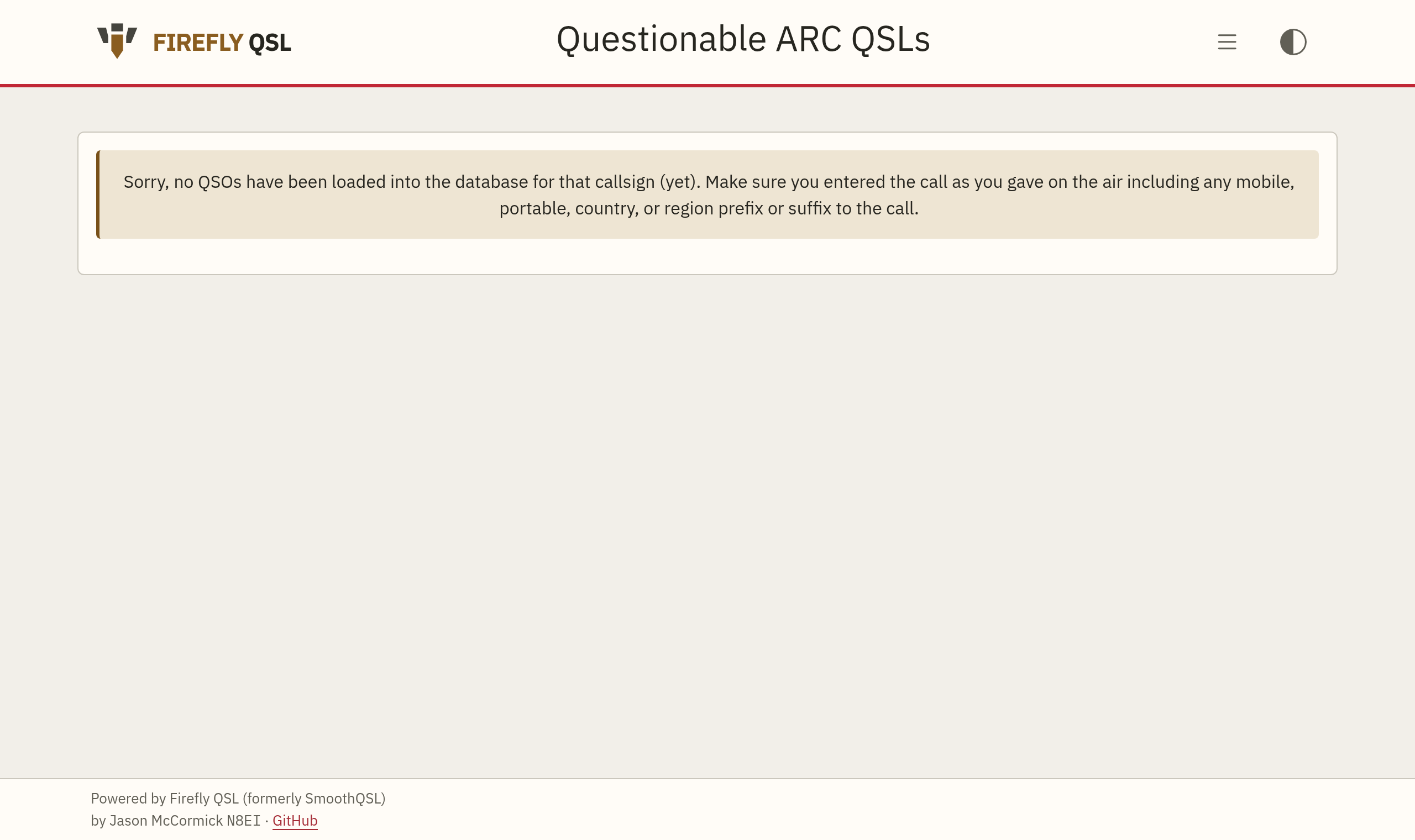
If no QSOs are found:
- Enter your callsign exactly as you gave it on the air, including any
portable, mobile, country or region prefix or suffix (for example
Q4FB/P). Each version of a callsign is searched separately. - Check the dates on the home page. The station may not have loaded that log yet.
- If it still isn't there, contact the station. Paper QSL and LoTW details are often in the notes on the home page.
"QSL Cards Are Not Available Yet"
The station has loaded logs but hasn't finished setting up its card. Check back later.
"Too Many Cards Requested"
Each visitor can draw 30 cards every 10 minutes. Wait a few minutes and try again.