Basic Use
Firefly QSL has two kinds of users:
- The station (the club or individual running Firefly QSL) logs in to load logs, set up the card and export the log.
- Everyone else searches for their own callsign and prints their QSL card. They don't need an account or a password.
The Home Page
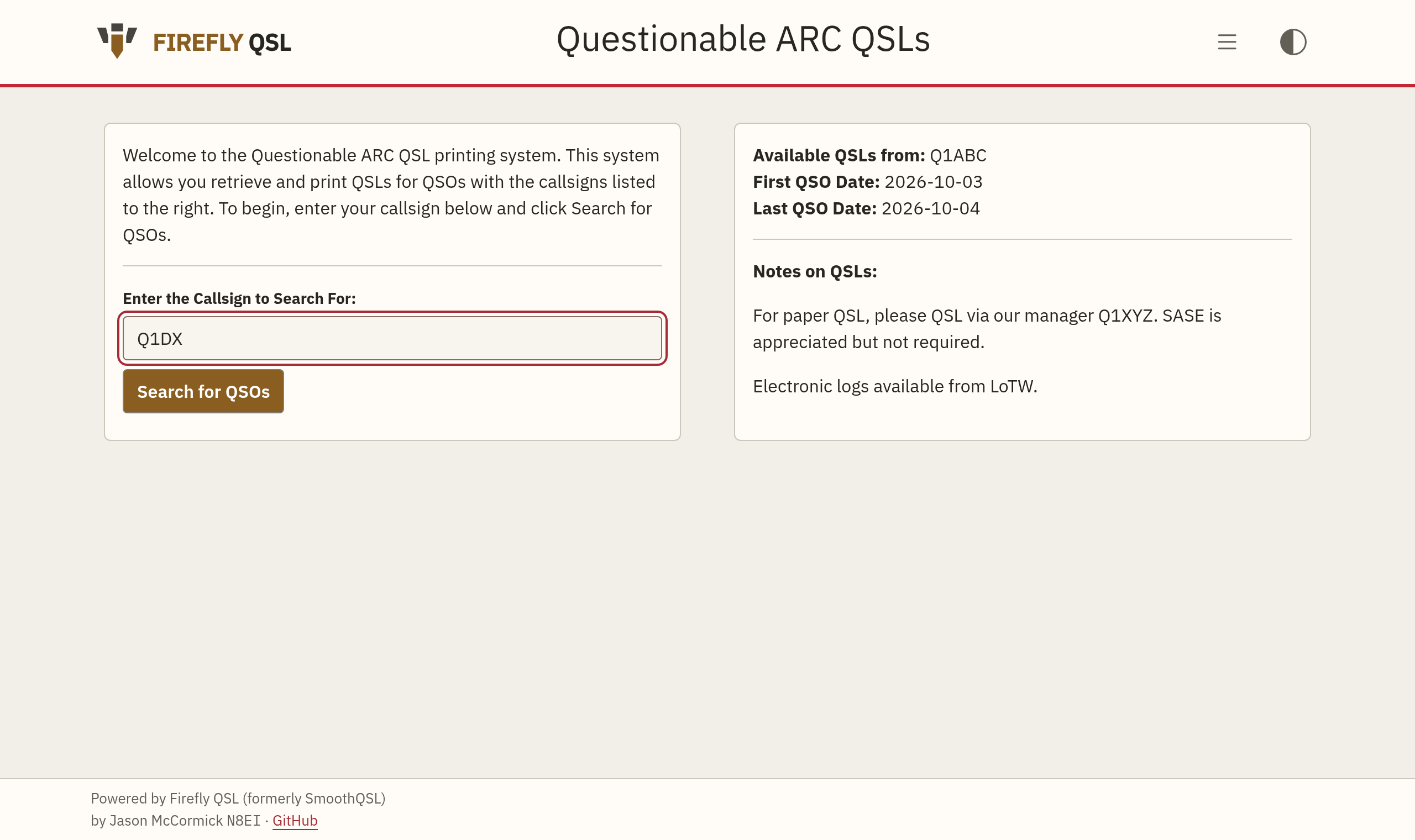
The home page is what everyone sees first. The left panel has the callsign
search. The right panel lists the station callsigns with QSOs loaded, the
first and last QSO dates, and the station's notes on QSLs (set with
$qsl_page_note in the configuration).
Logging In
Pages for the station ask for a login when you open them. The login name
is the club callsign ($club_call) and the password is the one set in the
configuration.
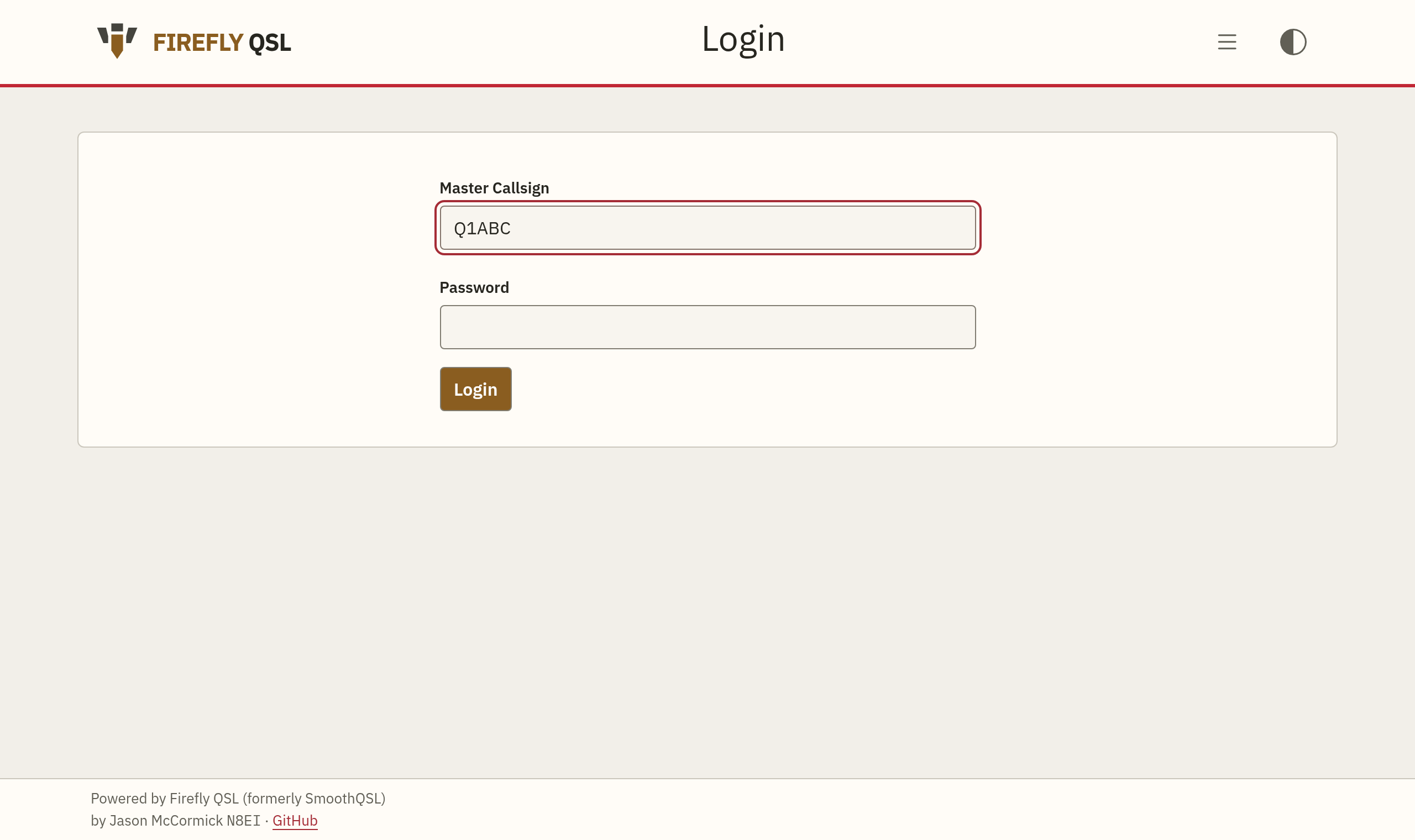
A login lasts until you close the browser or have been idle for 2 hours. After 10 failed logins from one address, that address must wait 15 minutes before trying again.
The Menu
The menu button (☰) at the top right of every page opens the station's pages:
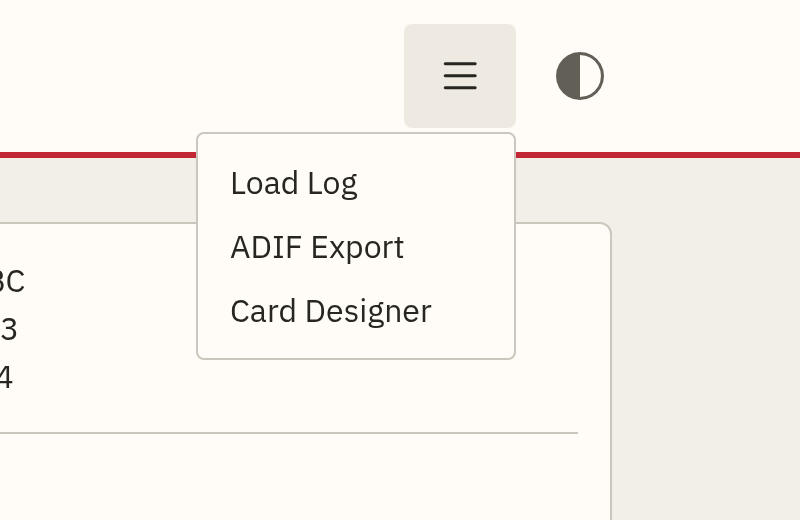
| Menu item | Page |
|---|---|
| Load Log | Load an ADIF log |
| ADIF Export | Download everything loaded as one ADIF file |
| Card Designer | Set up the QSL card |
Each asks for a login if you aren't logged in.
Light and Dark Themes
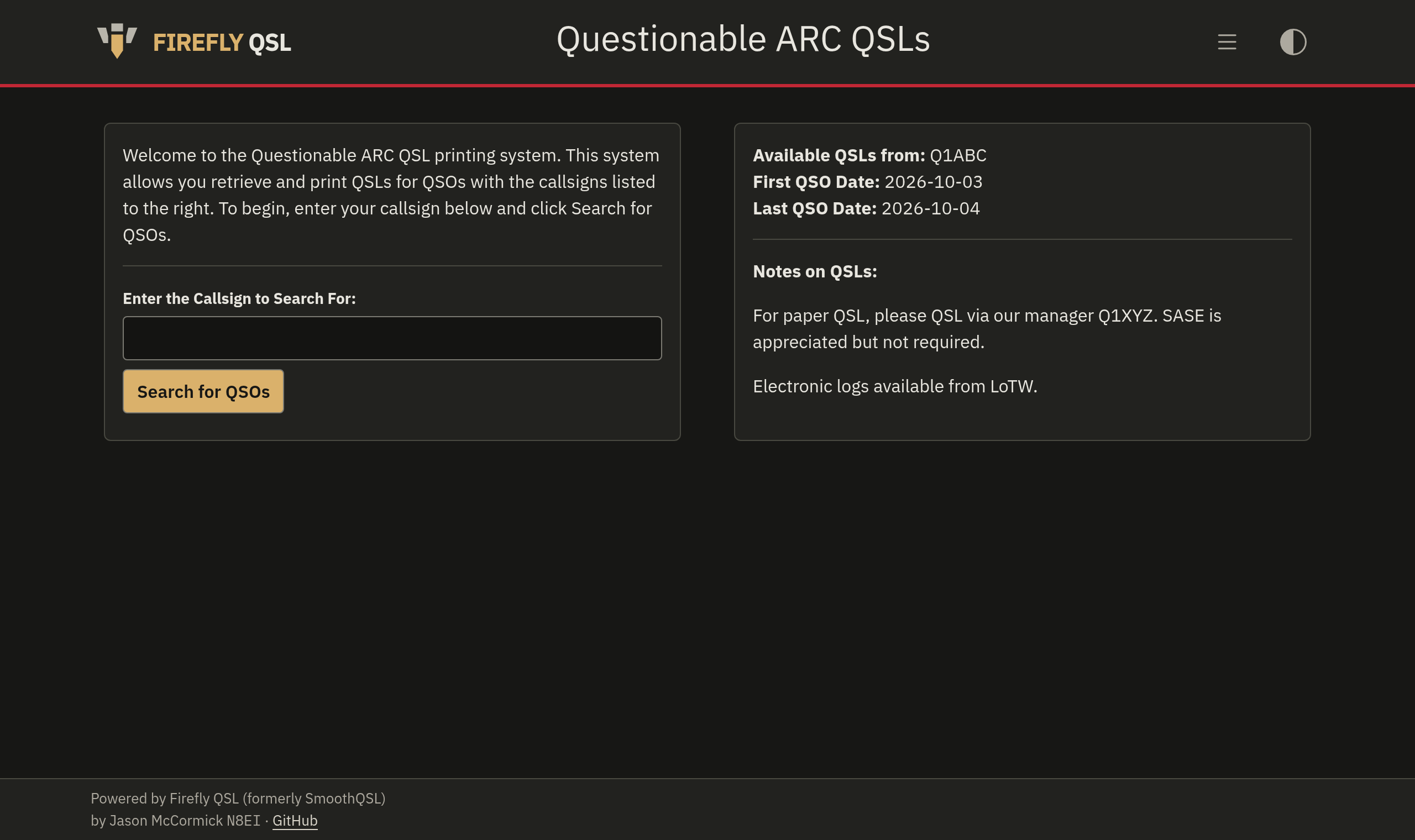
The half-circle button next to the menu switches the appearance between Light, Dark and System (follow the device's setting). Each browser remembers its own choice.
Testing After Installation
To test that the system is installed properly:
- Set up the single-QSO card in the Card Designer.
- Load a small log.
- Search for a callsign from that log on the home page and print its card.
If those three work, you have a successful installation.